
Keyboards are one of the most used devices, yet they often develop frustrating issues over time. Before replacing your keyboard, identify the exact problem and try simple fixes first.
In this guide, we cover the 10 most common keyboard problems, how to diagnose them us
How to Diagnose Keyboard Problems Fast
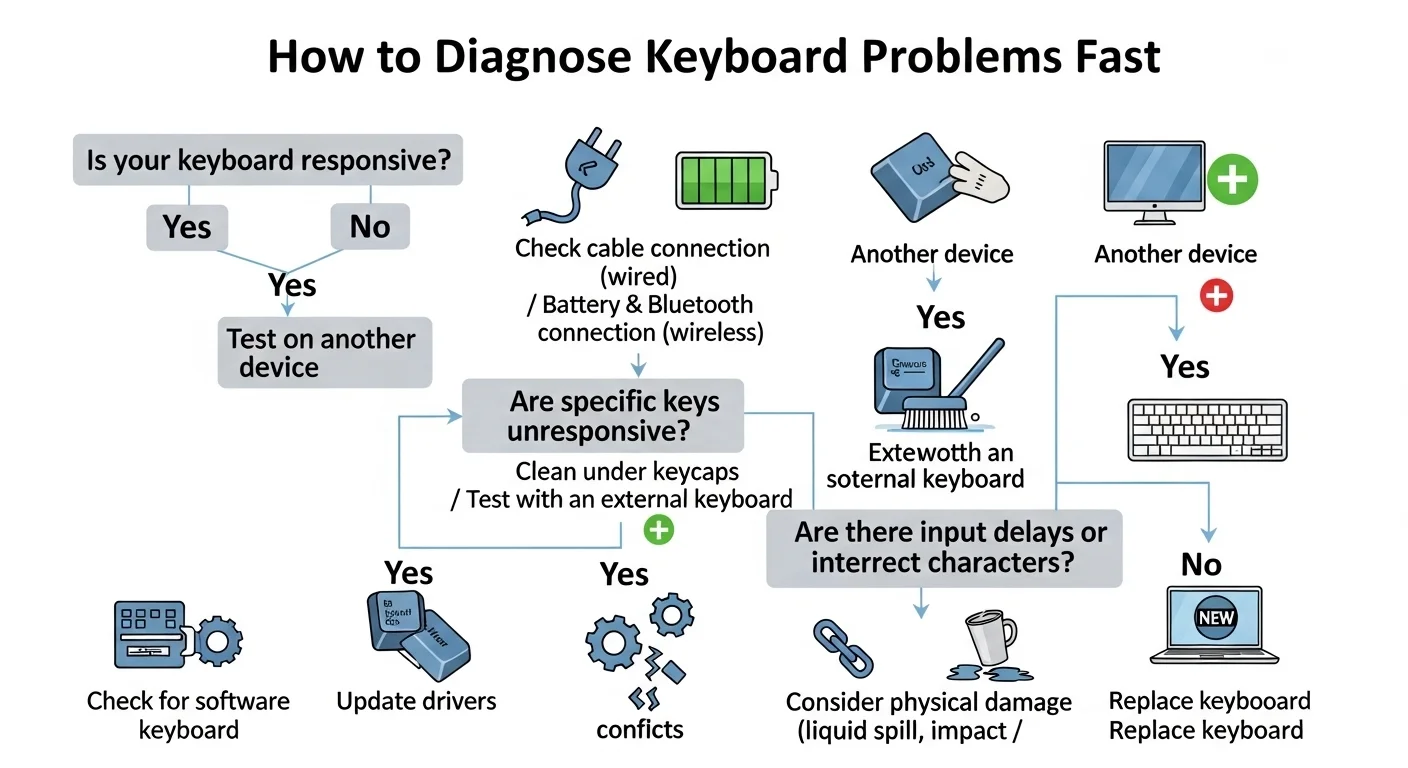
The best way to identify keyboard issues is a reliable online keyboard tester.
- Visit keytest.io
- Start pressing keys
- Observe which keys don't respond correctly
This visual tool instantly shows stuck keys, ghosting, chatter, and more.
Test your keyboard for free right now → Open Keyboard Tester10 Common Keyboard Problems and Fixes
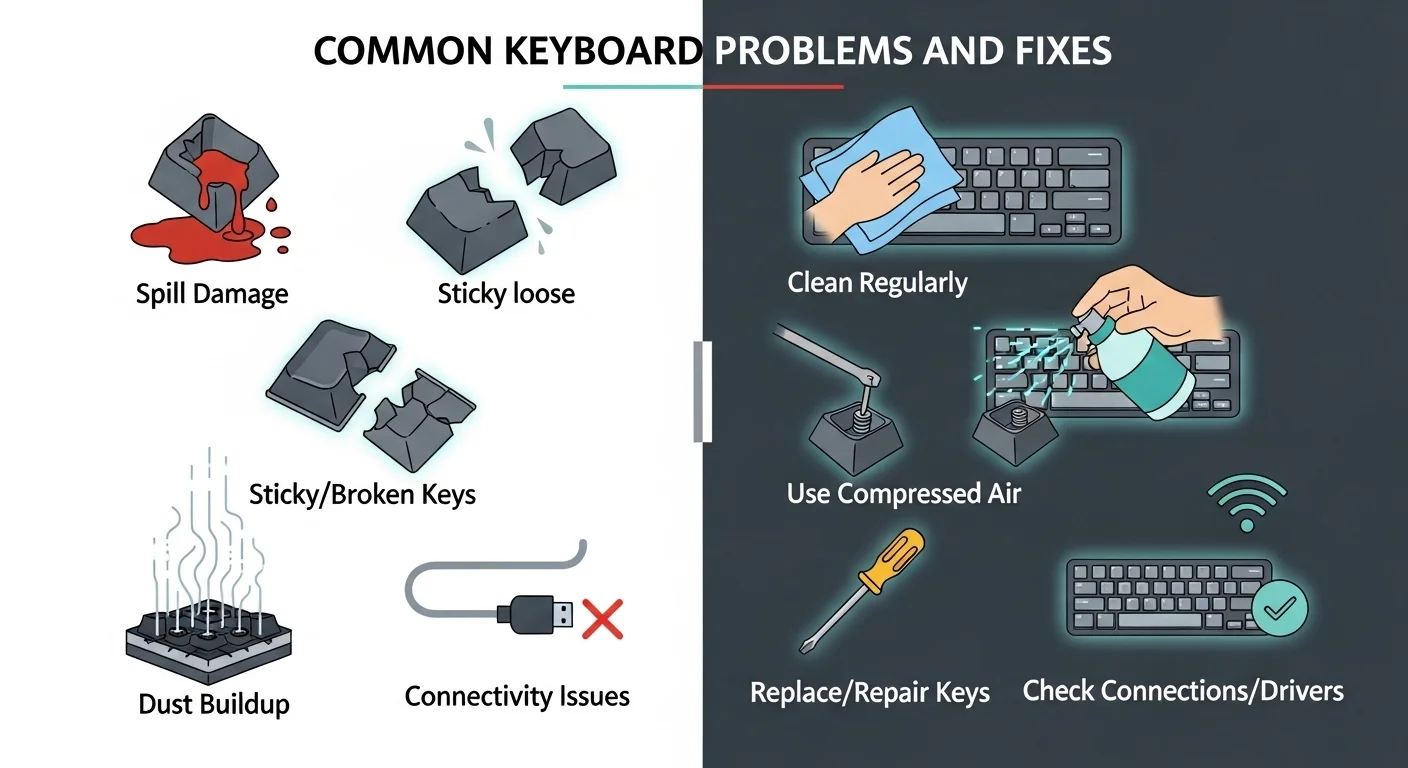
- Stuck Keys (Most Common Issue)
Symptoms: Key stays registered after release. On the tester it remains highlighted.
Causes: Dust, food particles, drink spills, or worn-out switches.
Fixes:- Shake the keyboard upside down
- Use compressed air between keys
- Remove keycaps and clean switches (mechanical)
- Use isopropyl alcohol (70%+) on a cotton swab
- Unresponsive / Dead Keys
Symptoms: Key never lights up on the tester.
Causes: Broken switch, damaged ribbon cable (laptops), or dirt buildup.
Fixes:- Clean around the key thoroughly
- Try a different USB port or restart
- For laptops: use keyboard cleaner spray
- Use an external USB keyboard as a workaround
- Double Typing / Key Chatter
Symptoms: One key press registers the letter twice or more.
Causes: Worn mechanical switch or debounce failure.
Fixes:- Clean the switch
- Adjust debounce time in VIA or QMK firmware
- Replace the switch on hot-swappable boards
- Use Keyboard Chatter Reducer software as a temporary fix
- Keyboard Ghosting
Symptoms: Pressing multiple keys registers extra unwanted keys.
Causes: Cheap membrane keyboards with poor anti-ghosting.
Fixes:- Upgrade to a mechanical keyboard with NKRO
- Test properly by pressing 3–6 keys together at keytest.io
- Delayed or Laggy Response
Symptoms: Noticeable delay between press and output.
Causes: Wireless interference, low battery, USB polling rate, or drivers.
Fixes:- Switch to wired mode if possible
- Replace batteries or recharge
- Update keyboard drivers and BIOS
- Increase USB polling rate in gaming software
- Keys Typing Wrong Characters
Symptoms: Pressing "A" types "S" or different characters.
Causes: Wrong keyboard layout/language setting.
Fixes:- Change input language to English (US) in Windows/Mac settings
- Check layout matches software setting
- Restart the computer
- Spacebar Not Working Properly
Symptoms: Works only on one side or intermittently.
Causes: Common on membrane/laptop keyboards due to the long bar mechanism.
Fixes:- Clean under the spacebar thoroughly
- Check the stabilizer clips
- Gently realign the metal bar if misaligned
- Num Lock / Caps Lock / Scroll Lock Issues
Symptoms: Indicator lights don't match actual state.
Causes: Software conflict or driver problem.
Fixes:- Reinstall keyboard drivers
- Use on-screen keyboard to toggle states
- Test with keytest.io — it shows exact hardware state
- Keyboard Types by Itself (Phantom Typing)
Symptoms: Keys keep typing automatically when not touched.
Causes: Stuck keys, liquid damage, or failing hardware.
Fixes:- Immediate cleaning
- Disconnect and reconnect the keyboard
- Test in another computer to isolate hardware vs software
- Keys Require Very Hard Press
Symptoms: Certain keys need much harder presses than others.
Causes: Worn or aging switches or dome sheet.
Fixes:- Clean the key and switch area
- For mechanical: lubricate or replace switch
- Consider replacing the keyboard if many keys are affected
Quick Diagnosis Table
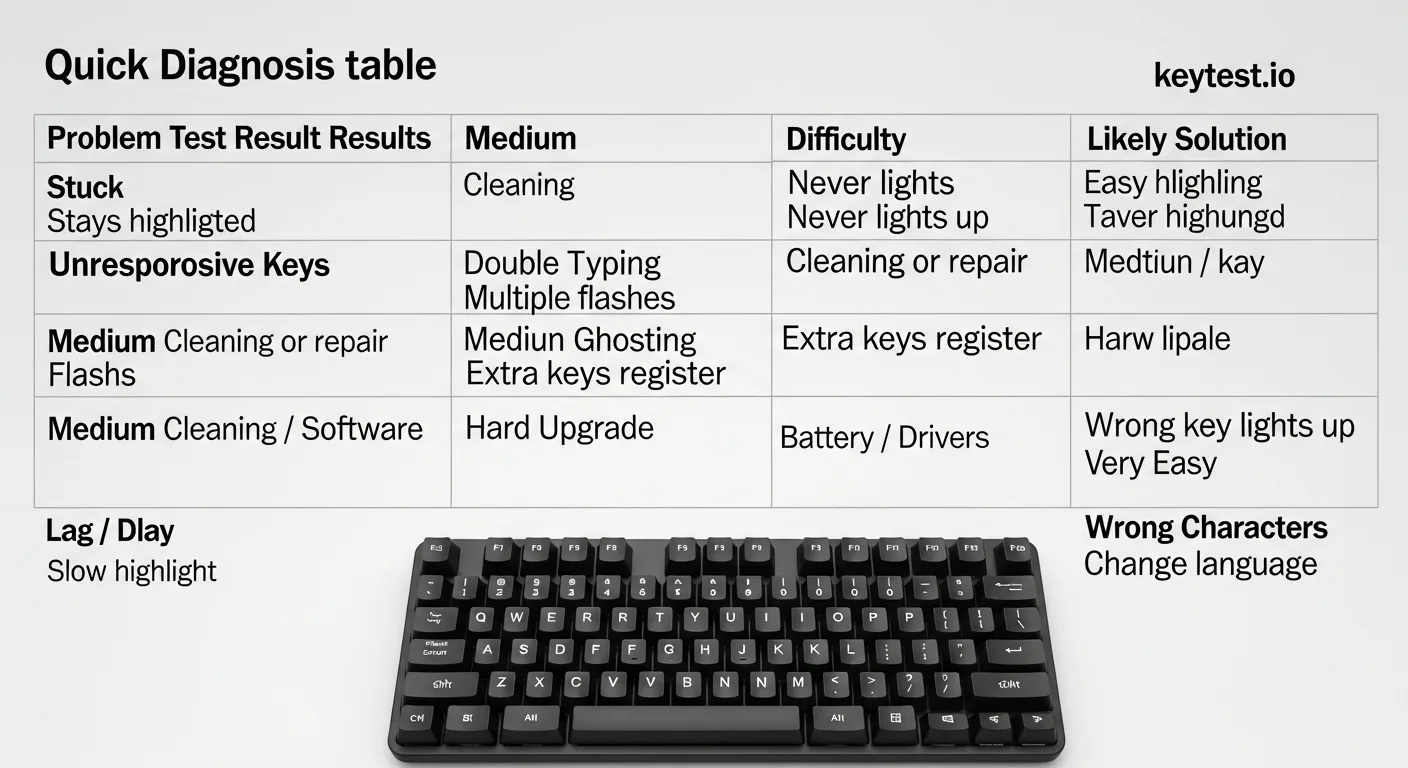
| Problem | Test Result on keytest.io | Difficulty | Likely Solution |
|---|---|---|---|
| Stuck Keys | Stays highlighted | Easy | Cleaning |
| Unresponsive Keys | Never lights up | Medium | Cleaning or repair |
| Double Typing | Multiple flashes | Medium | Cleaning / Software |
| Ghosting | Extra keys register | Hard | Upgrade keyboard |
| Lag / Delay | Slow highlight | Easy | Battery / Drivers |
| Wrong Characters | Wrong key lights up | Very Easy | Change language |
Preventive Maintenance Tips
- Clean your keyboard every 2–3 months
- Avoid eating or drinking near your keyboard
- Use a keyboard cover when not in use
- For mechanical keyboards: consider switch replacements every 1–2 years of heavy use
- Regularly test with keytest.io
When to Buy a New Keyboard
If more than 3–4 keys are failing even after thorough cleaning, or if it's a cheap membrane keyboard with ghosting issues, it's usually more cost-effective to buy a new one.
Not sure yet? Test your current keyboard here first
Frequently Asked Questions
Q1: Can all these problems be fixed without buying a new keyboard?
Many can (especially 1, 2, 3, 6, and 8), but ghosting and severe hardware damage often require replacement.
Q2: Is keytest.io accurate for diagnosing problems?
Yes, it shows real-time hardware input — one of the most reliable free tools available.
Q3: How often should I test my keyboard?
Every 3 months or whenever you notice typing issues.
Q4: Do these fixes work for both mechanical and membrane keyboards?
Most do, but mechanical keyboards are generally easier and cheaper to repair.
Q5: My laptop keyboard is failing — repair or replace?
Laptop keyboards are expensive to repair. Most people use an external keyboard as a workaround.
Conclusion
Keyboard problems are incredibly common, but most can be diagnosed quickly and fixed with simple steps. Using a free online keyboard tester like keytest.io is the fastest way to understand exactly what's wrong.
Don't struggle with bad typing experience. Test your keyboard today and fix issues early.
✅ Test your keyboard for free now → Go to keytest.io Keyboard TesterBookmark this guide and share it with anyone facing keyboard issues!