
Is your keyboard acting up?
Stuck keys, double typing, or certain letters not working? Before you spend money on a new keyboard, you should test it properly. The easiest and fastest way is to use a free online keyboard tester.
In this guide, you'll learn exactly how to test your keyboard online, what the results mean, and how to fix common problems — all using keytest.io, the simple and reliable keyboard testing tool.
Test your keyboard now for free → Test Keyboard at keytest.ioWhy You Should Test Your Keyboard Regularly
Keyboards take a lot of abuse. Whether you're a gamer, programmer, student, or office worker, you press thousands of keys every day. Over time, dust, spills, wear and tear, or manufacturing defects can cause problems.
Common issues include:- Stuck or repeating keys
- Unresponsive keys
- Ghosting (extra unwanted keystrokes)
- Double typing or key chatter
Testing your keyboard regularly helps you catch problems early, improves typing speed and accuracy, and can save you from buying a new keyboard unnecessarily.
What Can an Online Keyboard Tester Detect?
An online keyboard tester like keytest.io visually shows you exactly what your physical keyboard is sending to the computer.
| Problem | Visual Sign on Tester | Common Causes |
|---|---|---|
| Stuck Key | Key stays highlighted (blue) after release | Dust, spill, worn switch |
| Unresponsive Key | Key never highlights | Broken switch, cable issue, dirt |
| Ghosting | Extra keys light up when pressing multiple keys | Poor anti-ghosting on membrane keyboards |
| Double Typing / Chatter | Key flashes multiple times on single press | Failing debounce or switch |
| Delayed Response | Slow or inconsistent highlighting | Software conflict or hardware lag |
How to Test Your Keyboard Online – Step-by-Step Guide

- Visit the Keyboard Tester
Go to keytest.io — no registration, no download required. Works on Windows, Mac, Linux, or ChromeOS. - Switch to English Keyboard Layout
Important: For accurate testing, switch your input language to English (US) or English (UK). - Start Testing
Click anywhere on the page to focus, then press each key.
Working key → lights up blue/green then returns to normal.
Stuck key → stays highlighted after release.
Test your keyboard right now → Open Free Keyboard Tester - Test All Key Types
- All letters and numbers
- Function keys (F1–F12)
- Modifier keys (Shift, Ctrl, Alt, Windows/Command)
- Arrow keys and navigation keys (Home, End, Page Up/Down)
- Numpad (if you have one)
- Test for Ghosting and Multi-Key Pressing
Press multiple keys together. Good keyboards register 6+ keys at once (NKRO).
Understanding the Color Codes on keytest.io
- Highlighted (Blue/Green): Key is currently pressed or registered.
- Stays highlighted after release: Key is stuck or has an issue.
- Never lights up: Key is unresponsive.
- Flickers multiple times: Possible chatter or debounce problem.
Common Keyboard Problems and How to Fix Them
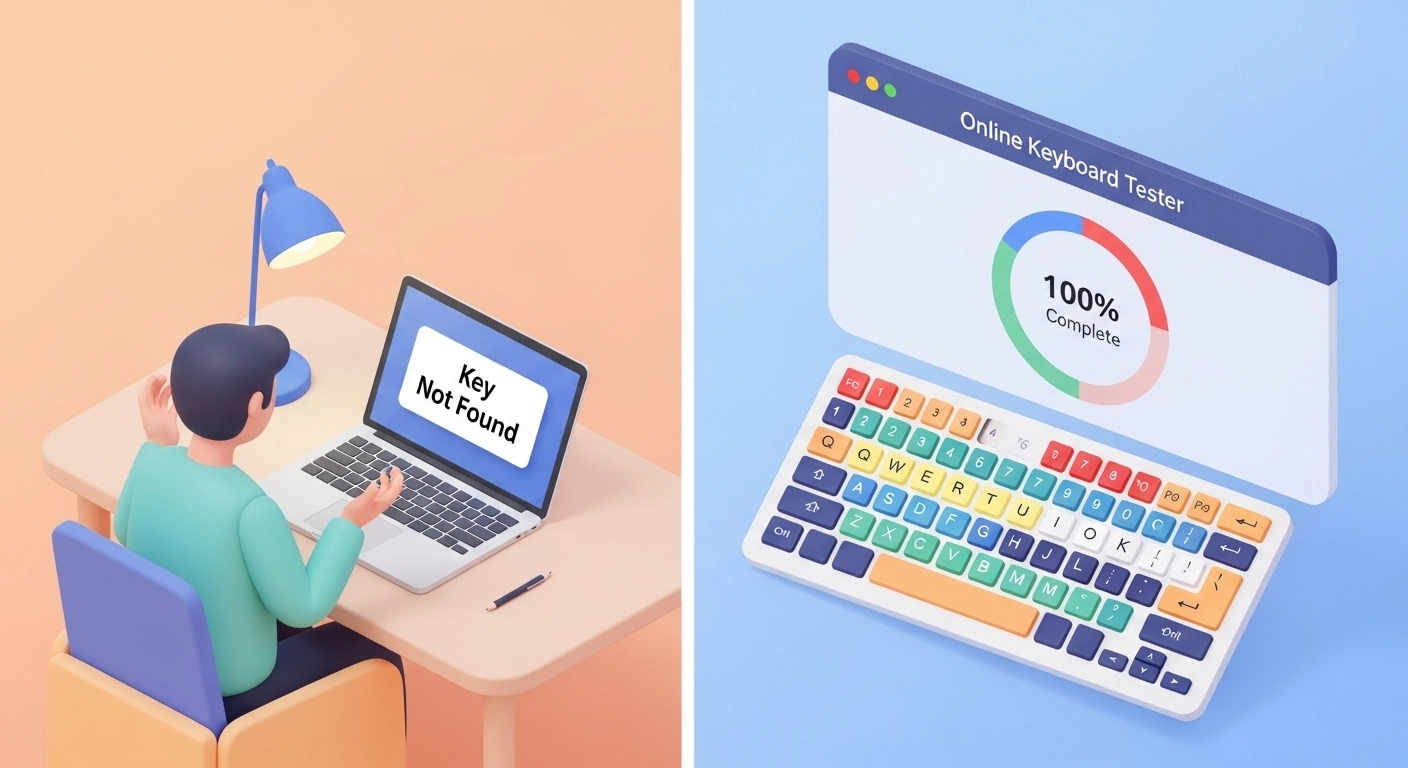
- Stuck Keys: Clean around the key with compressed air or isopropyl alcohol. For mechanical keyboards, remove the keycap.
- Unresponsive Keys: Check cable connection. Try a different USB port. Laptops may need professional repair.
- Ghosting: Common on cheap membrane keyboards. Upgrade to a mechanical keyboard with anti-ghosting.
- Double Typing: Often a failing switch. Adjusting debounce settings in software can help.
- Keys Registering Wrong: Usually a layout or language setting issue.
After any fix, return to keytest.io and test again to verify.
How to Test Different Types of Keyboards

- Mechanical Keyboards: Press each key firmly. Switches last longer but can develop issues after heavy use.
- Laptop / Membrane: Focus on spacebar, Enter, and Shift — they wear out faster.
- Wireless Keyboards: Low battery causes delayed or missed keystrokes. Test while plugged in if possible.
- Gaming Keyboards: Focus on WASD, number row, and multi-key combinations.
Keyboard Testing Tips and Best Practices
- Test in a quiet environment without distractions.
- Test both light and heavy presses.
- Restart your computer and test again if you suspect software issues.
- Test in different applications (Notepad, browser, games) after using the online tester.
- Clean your keyboard every 3–6 months.
Quick Checklist
- Switch to English layout first
- Press every single key
- Check for keys that stay lit
- Test multiple key combinations
- Note any problems and clean or repair accordingly
When Should You Replace Your Keyboard?
If the online test shows many failing keys, or cleaning doesn't help, it's time for a new one. A good keyboard should pass every key responding cleanly and quickly.
Frequently Asked Questions (FAQ)
Q1: Is keytest.io really free?
Yes, completely free with no limits or sign-up required.
Q2: Does it work on laptops?
Yes, it works on all laptops, desktops, and any keyboard type.
Q3: Can it detect ghosting?
Yes. Press multiple keys together and see if extra keys light up.
Q4: Why do I need to switch to English layout?
The virtual keyboard uses the standard QWERTY English layout for accurate mapping.
Q5: Is it safe to use?
Absolutely. It only reads your key presses — no personal data is collected.
Q6: What if my keyboard works on the tester but not in games?
This usually means a software or game-specific setting issue.
Conclusion
Testing your keyboard online is the fastest and smartest way to diagnose typing problems. With keytest.io, you can check every key in seconds, identify issues early, and keep your keyboard performing at its best.
Don't wait until your keyboard completely fails.
✅ Test your keyboard now for free → Open keytest.io Keyboard TesterBookmark this page and test your keyboard every few months to improve your daily productivity and gaming performance.